Creating a CSV File
Google: If your contacts are saved in Google, please follow these steps.
(We recommend following these steps on a computer)
Step 1: Log in to your Google account.
Step 2: Select the Google Apps and locate "Contacts"
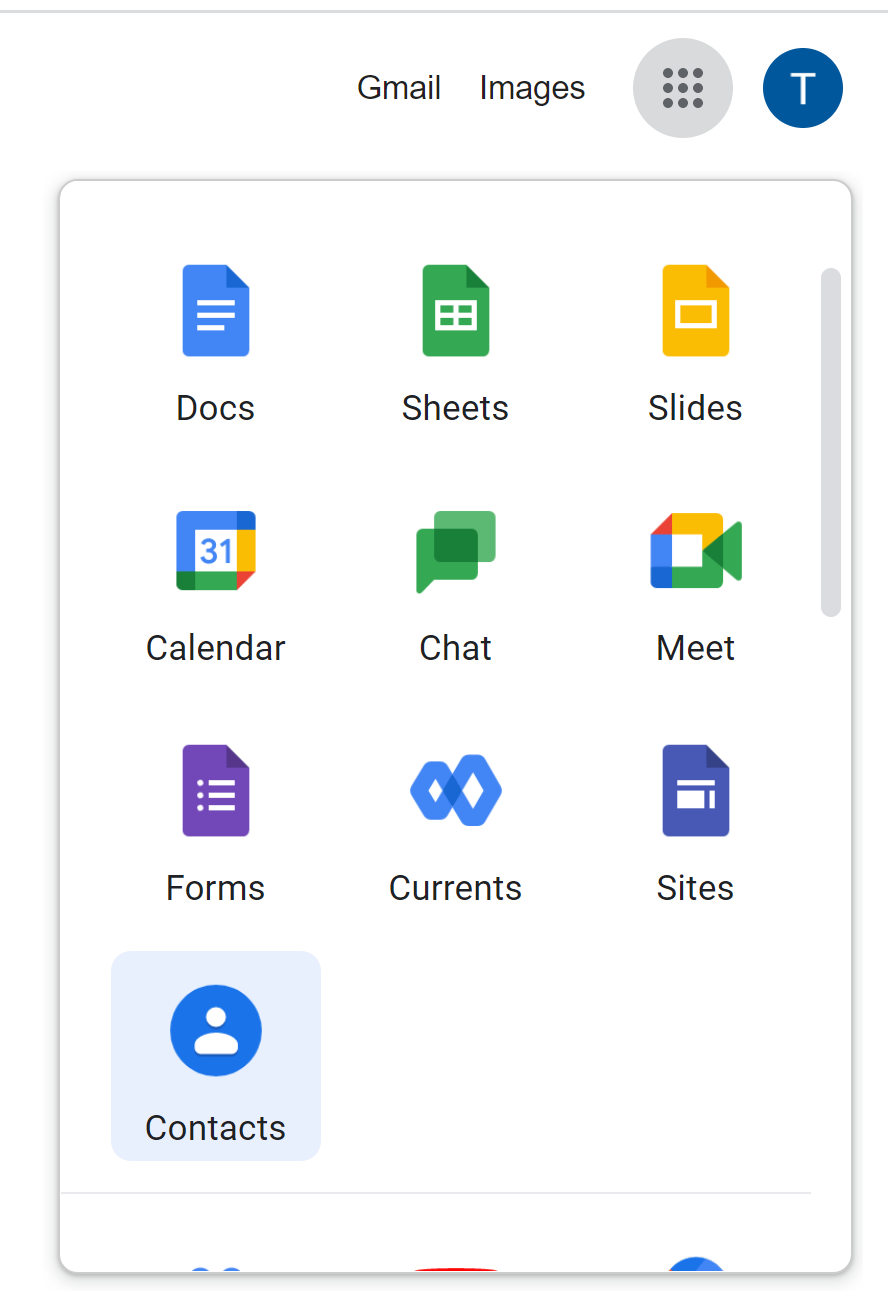
Step 3: Select the contacts you'd like to export.
Step 4: Select "Export" in the far left column
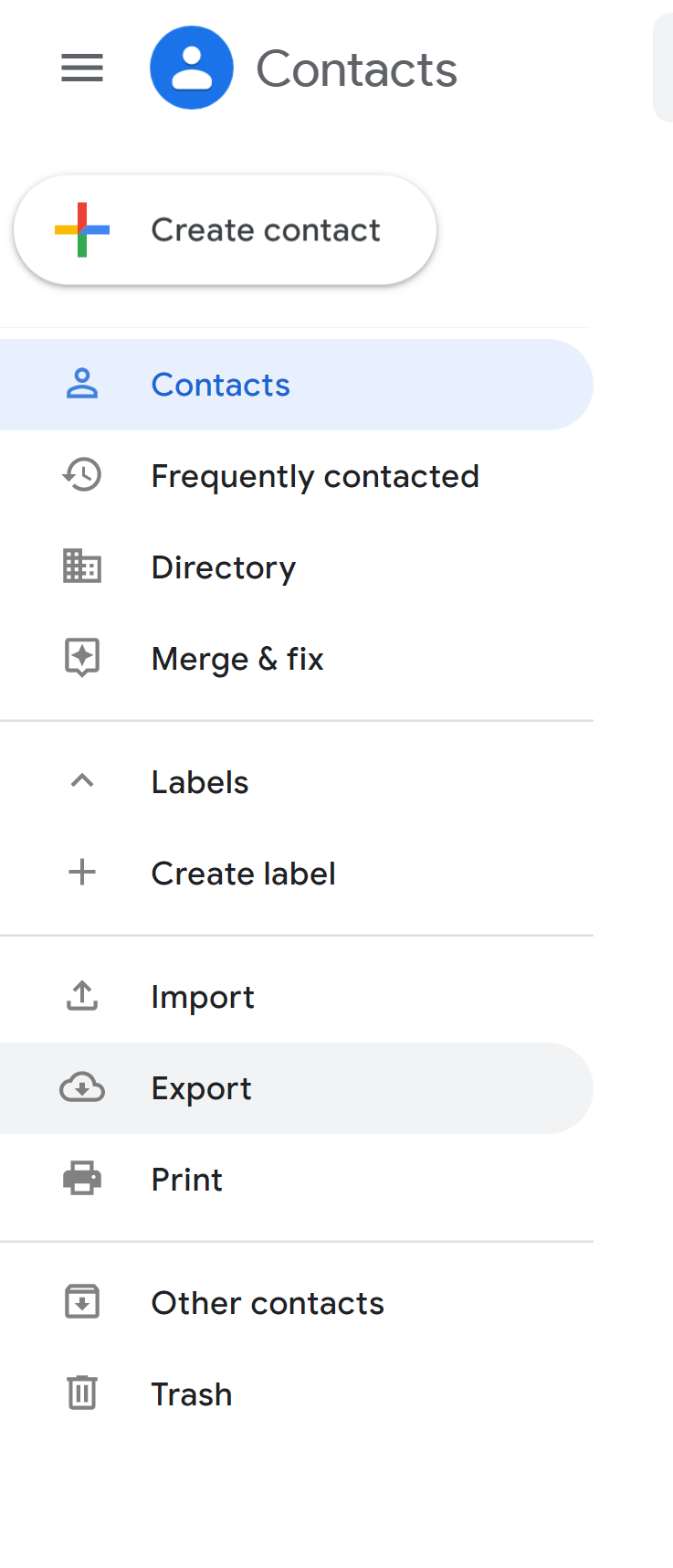
Step 5: We recommend viewing and scrubbing the file.
This is an important step to make sure you remove any blank columns or rows. If any of the required fields (First Name, Last Name, or Number) are blank, the entire contact on that row won't import.
Step 5: Export the contacts as a "Google CSV"
(This will automatically download a CSV File to your computer)
You can now use this file to upload into Epype as your CSV file for your new contacts. To learn more about importing/adding contacts to Epype, please see our Adding Contacts article.
iCloud: If you have your contacts in iCloud. Please follow these steps:
(We recommend following these steps on a computer)
Step 1: Log in to your iCloud account, and click on "Contacts".
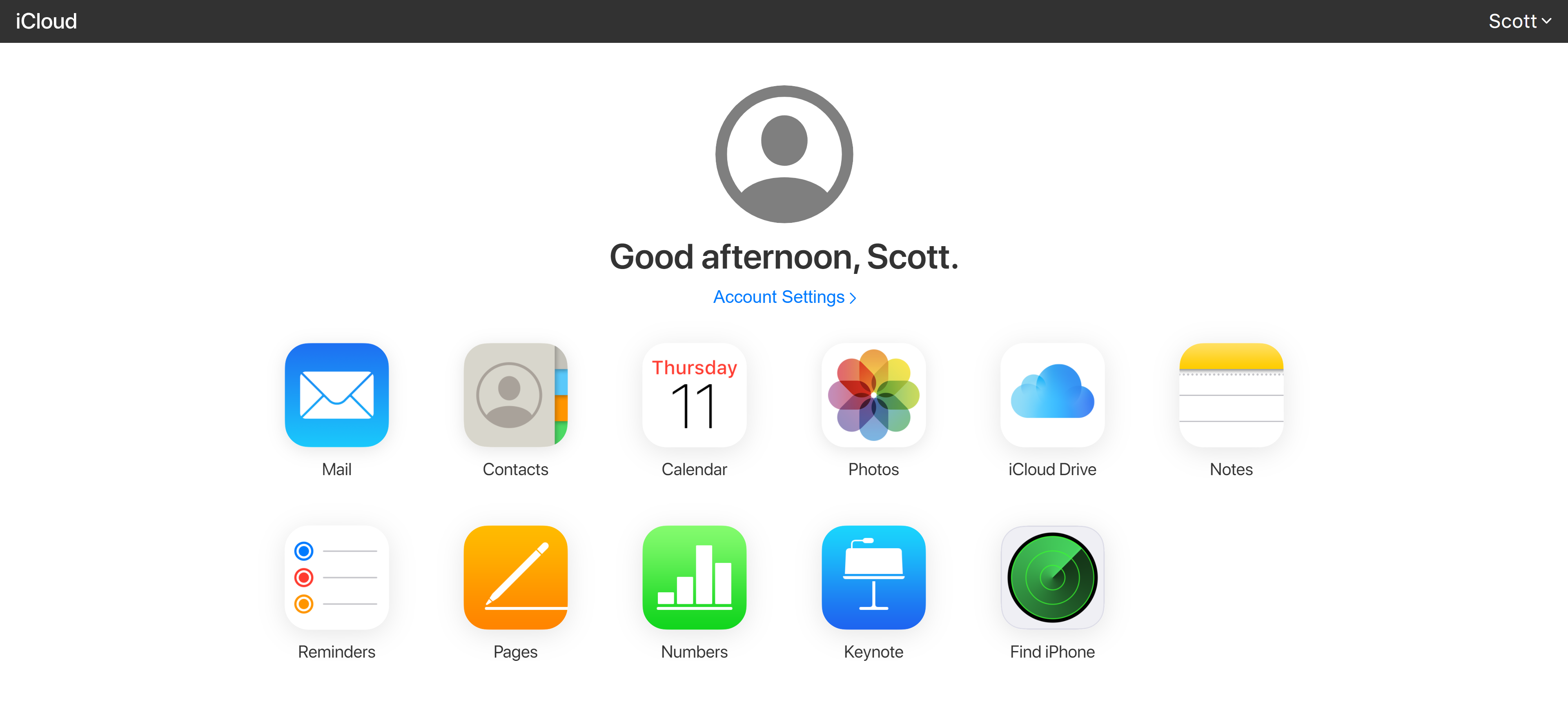
Step 2: Select the contacts you'd like to export.
Step 3: In the bottom left, find the gear icon and choose "Export vCard"
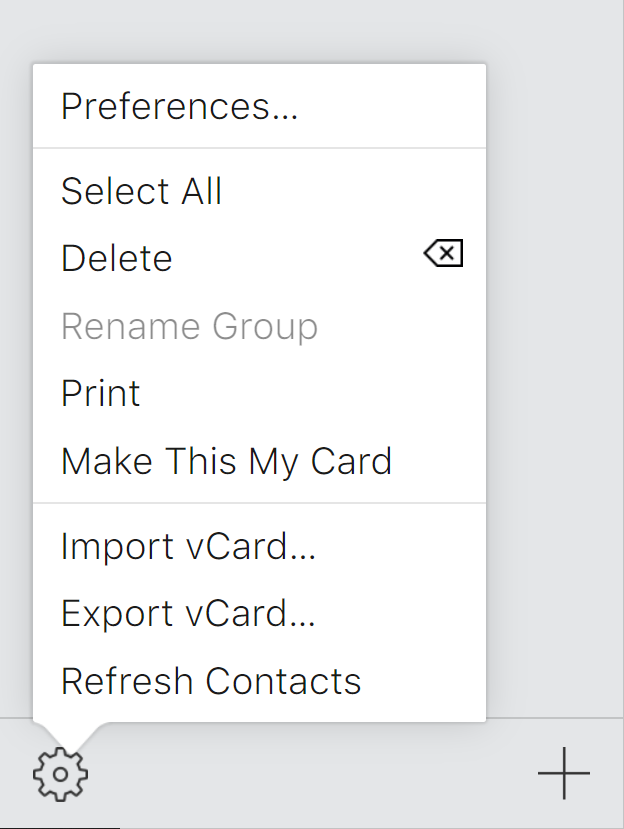
Step 3: Once you have your vCard file, you can now upload your contacts into your Epype account.
(Before importing contacts, we recommend creating a contact group to add them too. Please see our Contact Groups article for more information)
To learn more about importing/adding contacts to Epype, please see our Adding Contacts article.
Last Updated by: ES 03/15/2022