Sending An Invoice
Send an Invoice with your Epype. Follow these 3 Easy Steps:
- Find the Contact you want to send the Invoice to and go to Invoices.
- Select the item you are sending the Invoice for, add a message, and Epype link.
- Click Send Now or Send For Later!
Before making an Invoice, make sure you have:
- Product/s
- Payment Method Set Up
Let's Walk You Through This Step By Step
1. Find the Contact you want to send the Invoice to and go to Invoice.
Click on the tab that says "Contacts".
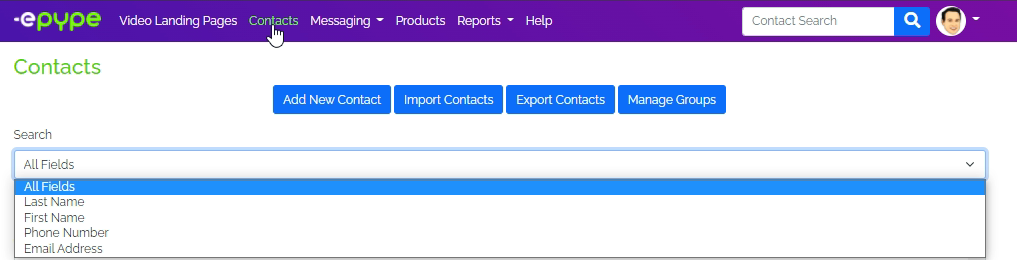
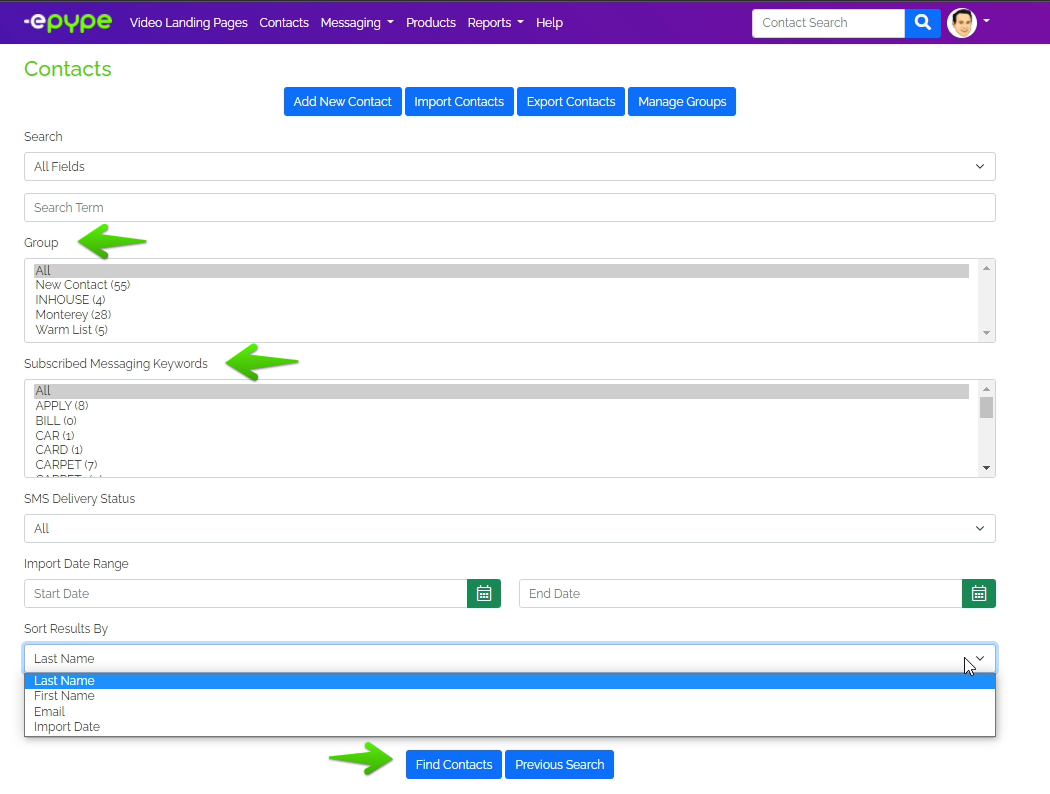
Search via the search dropdown shown on the screenshot below. You could also use the Group or Subscribed Messaging Keyword the contact is associated with. Click on Find Contacts to show result/s.
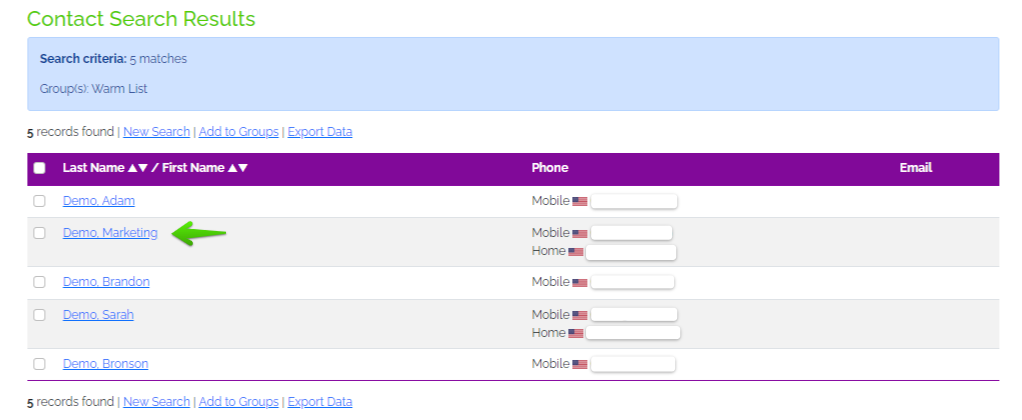
Select the contact you want to send the invoice to:
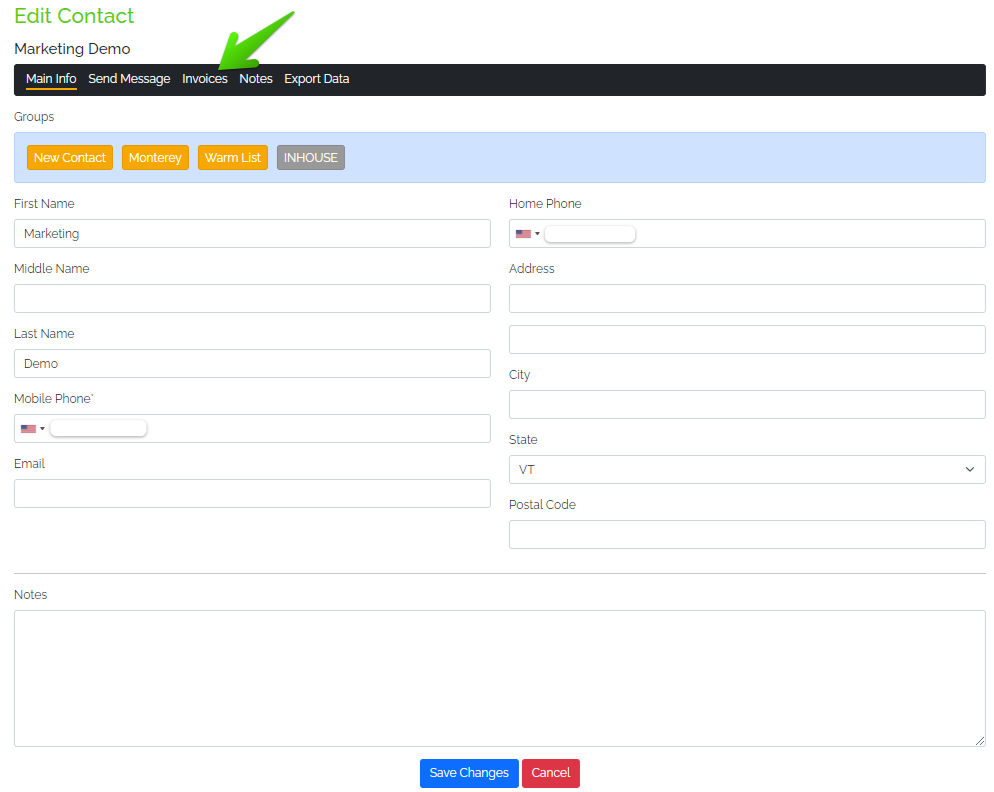
Once you select the contact, click on the Invoices tab to proceed to the next step.
2. Select the item/service you are sending the Invoice for, add a message, and Epype link.
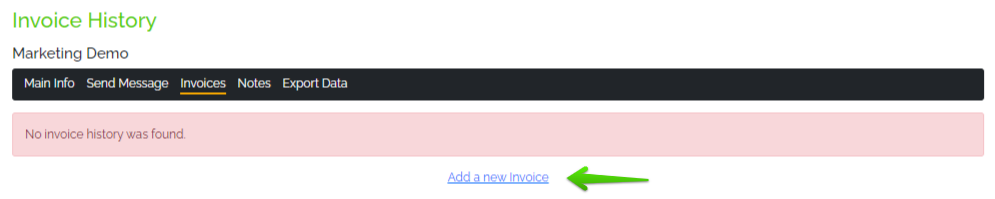
Under Invoices, you'll see Invoice history, if any. You'll also find "Add A New Invoice" link, click on that to make a new invoice.
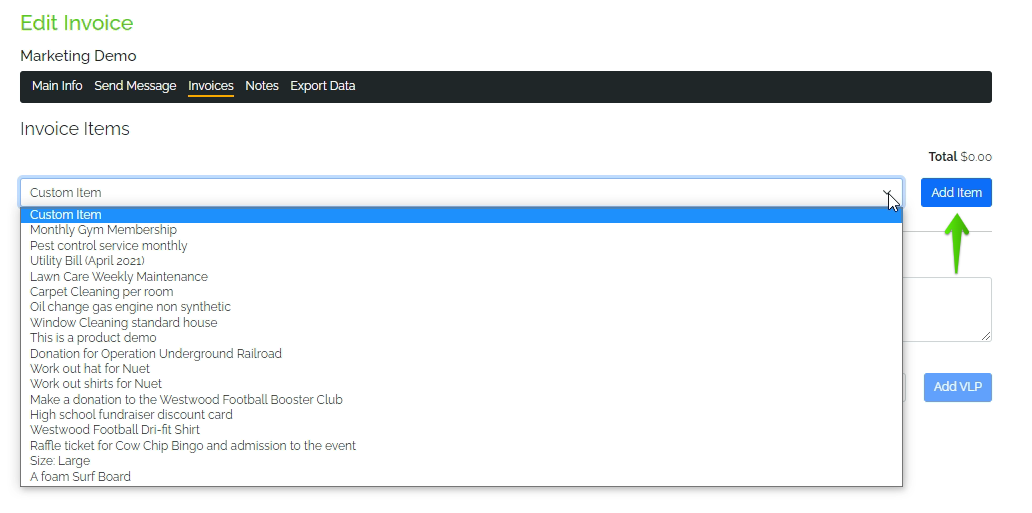
Select an Item from the Custom Item dropdown. These items are products that you have already added to Epype. For information about adding a product, click here. Once you have chosen a product, click on "Add Item".
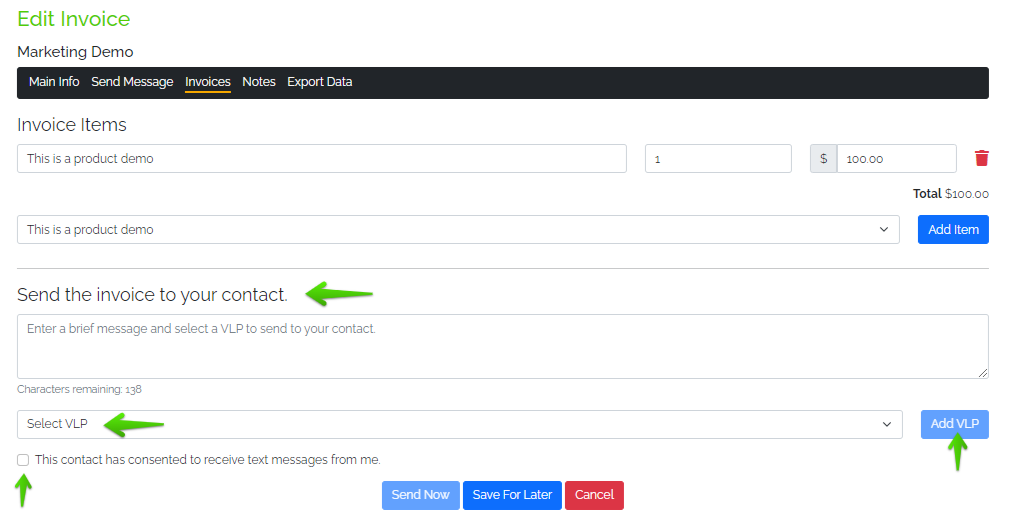
You can modify the quantity and price of the item. The Invoice Amount should be more than $0.00 for it to be saved or sent.
You can also delete the item or add another item to the Invoice.
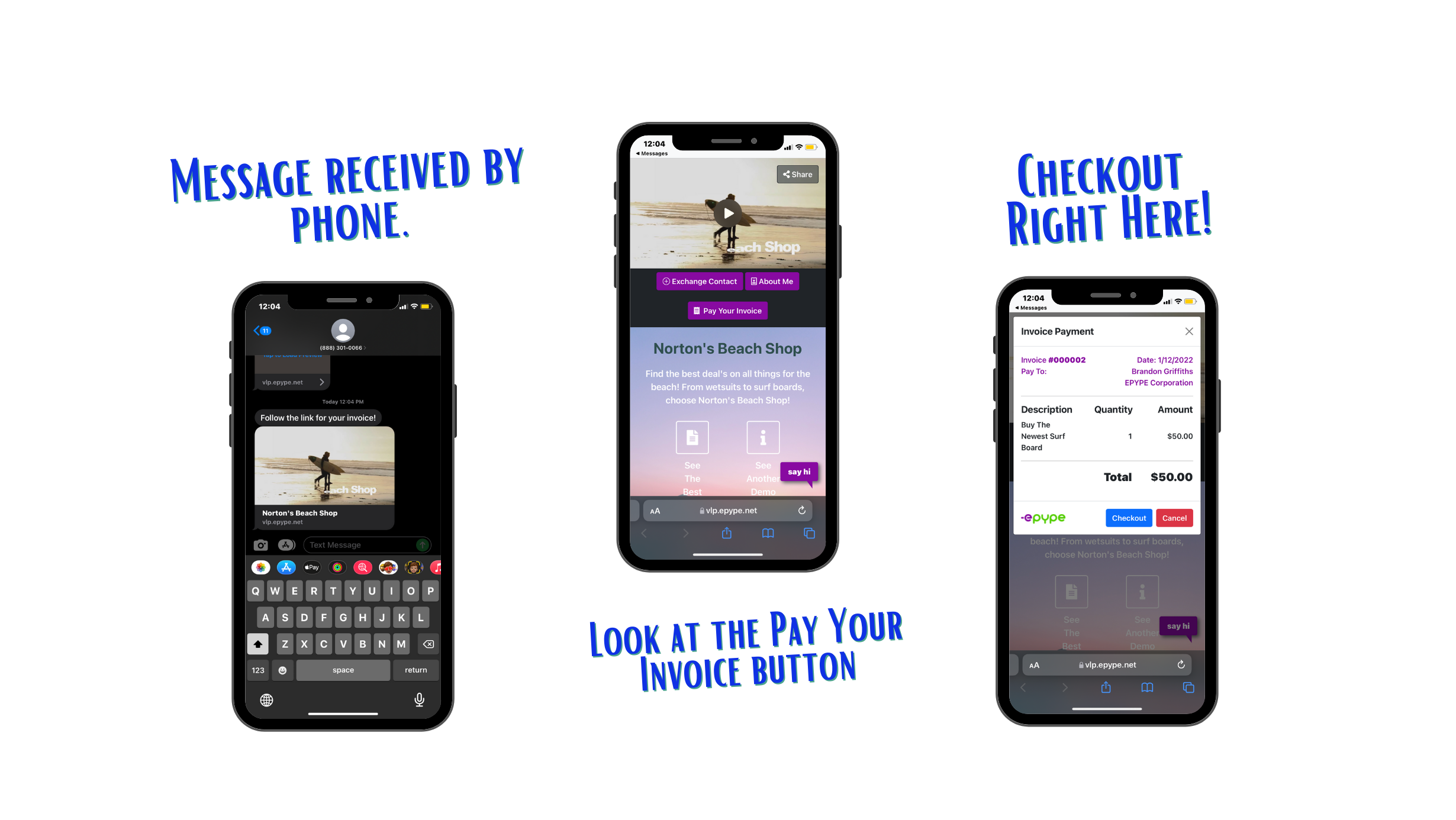
Type in your message. Select an Epype then click on Add Epype. Or manually type the Epype link.
3. Click Send Now or Send For Later!
Be sure that the person you are sending this invoice to has consented to receive messages from you (if they have opted-in to a keyword, they have consented to receive your content. Click here for more information about keywords.).
You can either choose to Send Now or Save For Later.

This is what it would look like if you select Save For Later. You can Send, Edit, or Delete the saved Invoice under Invoices.
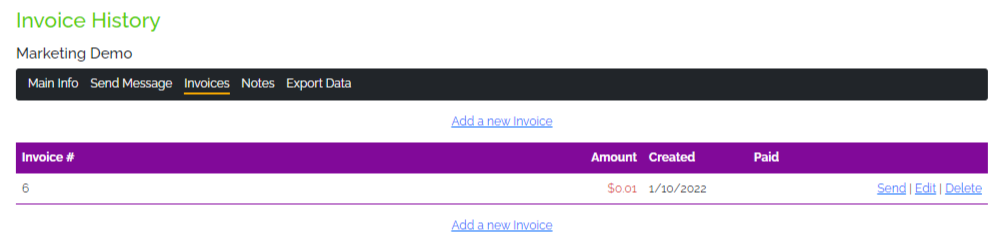
This is what it would look like if you select Send Now. You can Remind, Edit, or Delete the sent Invoice under Invoices.

Congratulations! You have successfully made an Invoice!
Last Updated by: ES 03/15/2022